
Getting started with AgoraQuiz
AgoraQuiz is the revision quiz written by your students: they suggest the questions, you approve them, then the whole class revises by playing. Whether you are a teacher, a trainer or simply curious about the tool, you are in the right place!
This guide follows the steps the app suggests when you first log in. Allow about ten minutes to get your first group ready.
- Step 1 - Create a group
- Step 2 - Add themes
- Step 3 - Invite your students
- Step 4 - Build your question bank
- Step 5 - Start playing
- Step 6 - Track progress
- Step 7 - Go further with AgoraQuiz Plus
Step 1 - Create a group
A group brings together students who play with each other on the same themes: most of the time, a class.
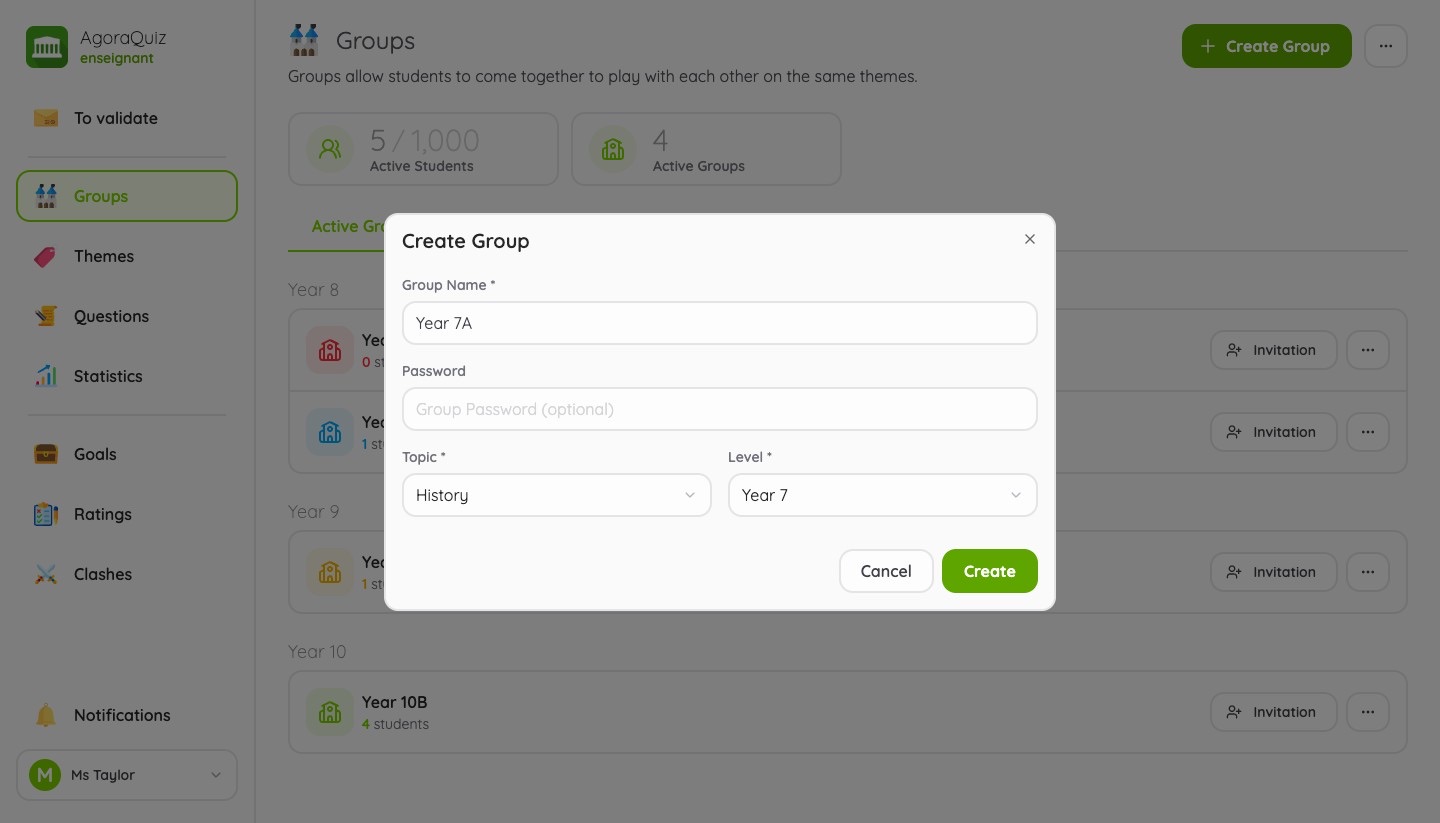
From the Groups page, click Create Group, then enter a name, a topic (the subject) and a level. The password is optional: add one if you want to prevent a student from joining another class's group.
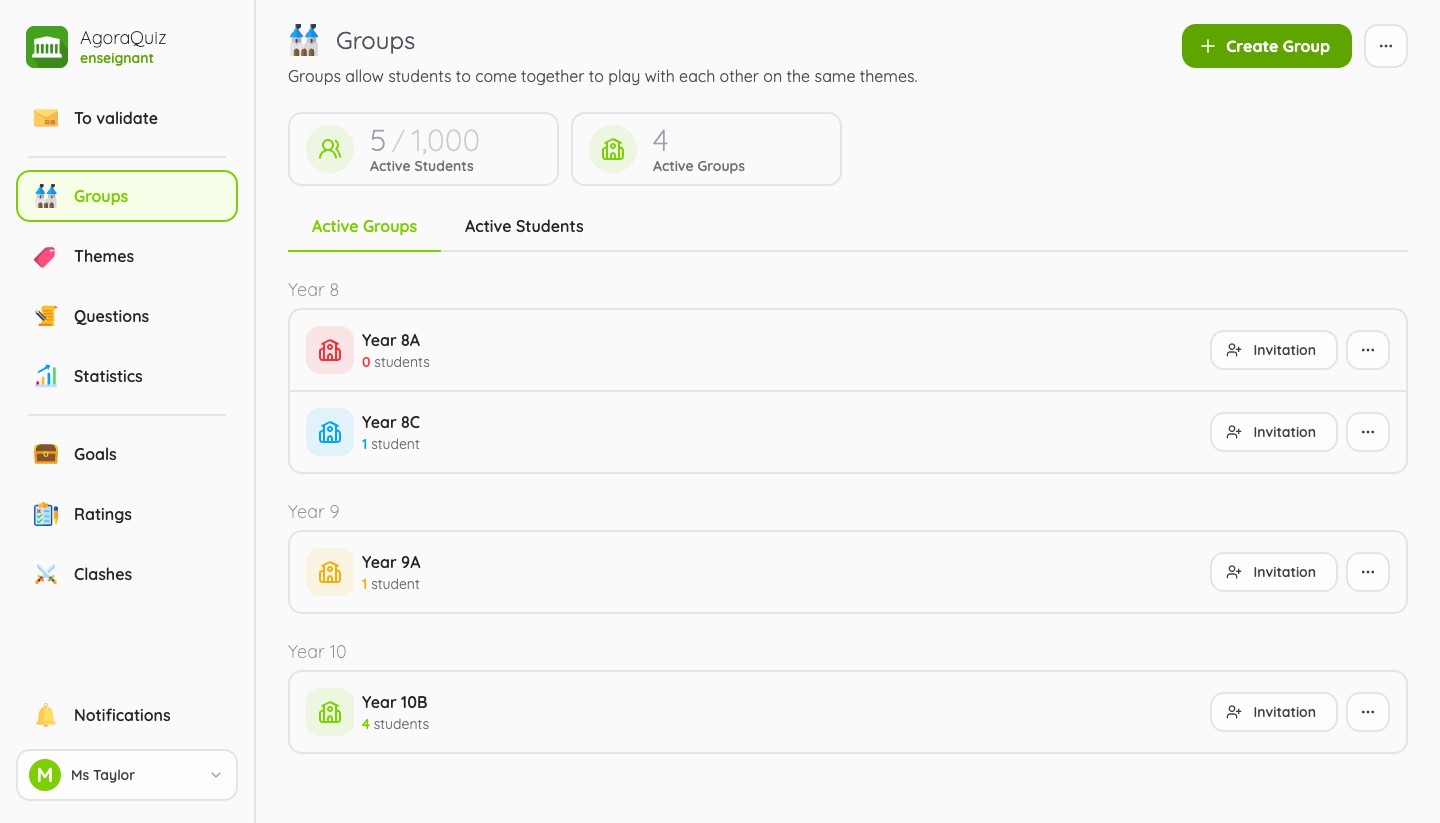
Your groups are then sorted by level, with the number of students in each.
Good to know
- The free account lets you welcome up to 40 students in 1 active group. AgoraQuiz Plus goes up to 1,000 students, with unlimited groups.
- You can make a group inactive at any time from its “...” menu: students can no longer access it, and it frees up its place.
Step 2 - Add themes
Themes are sets of questions on which students suggest questions and play games.
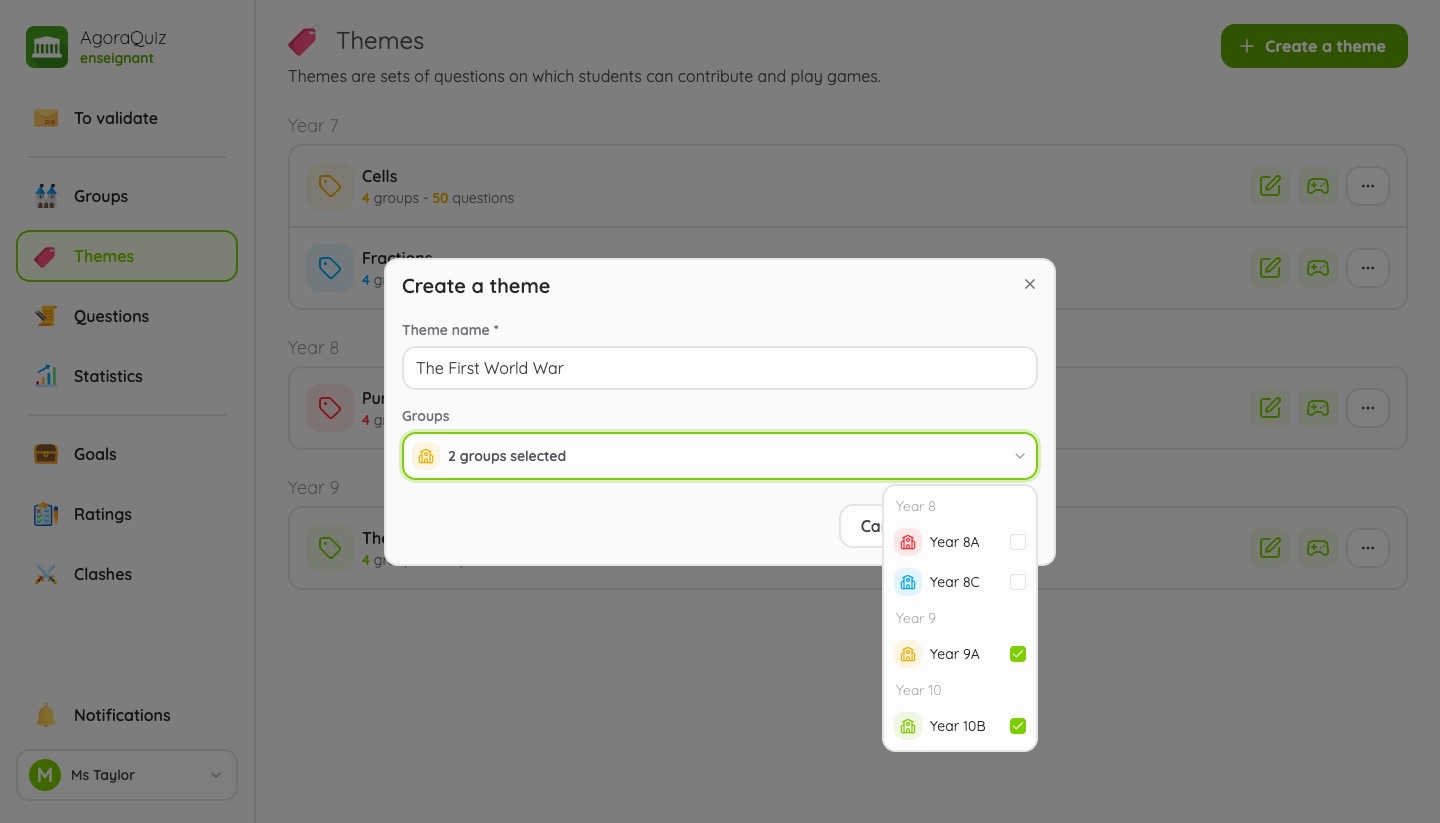
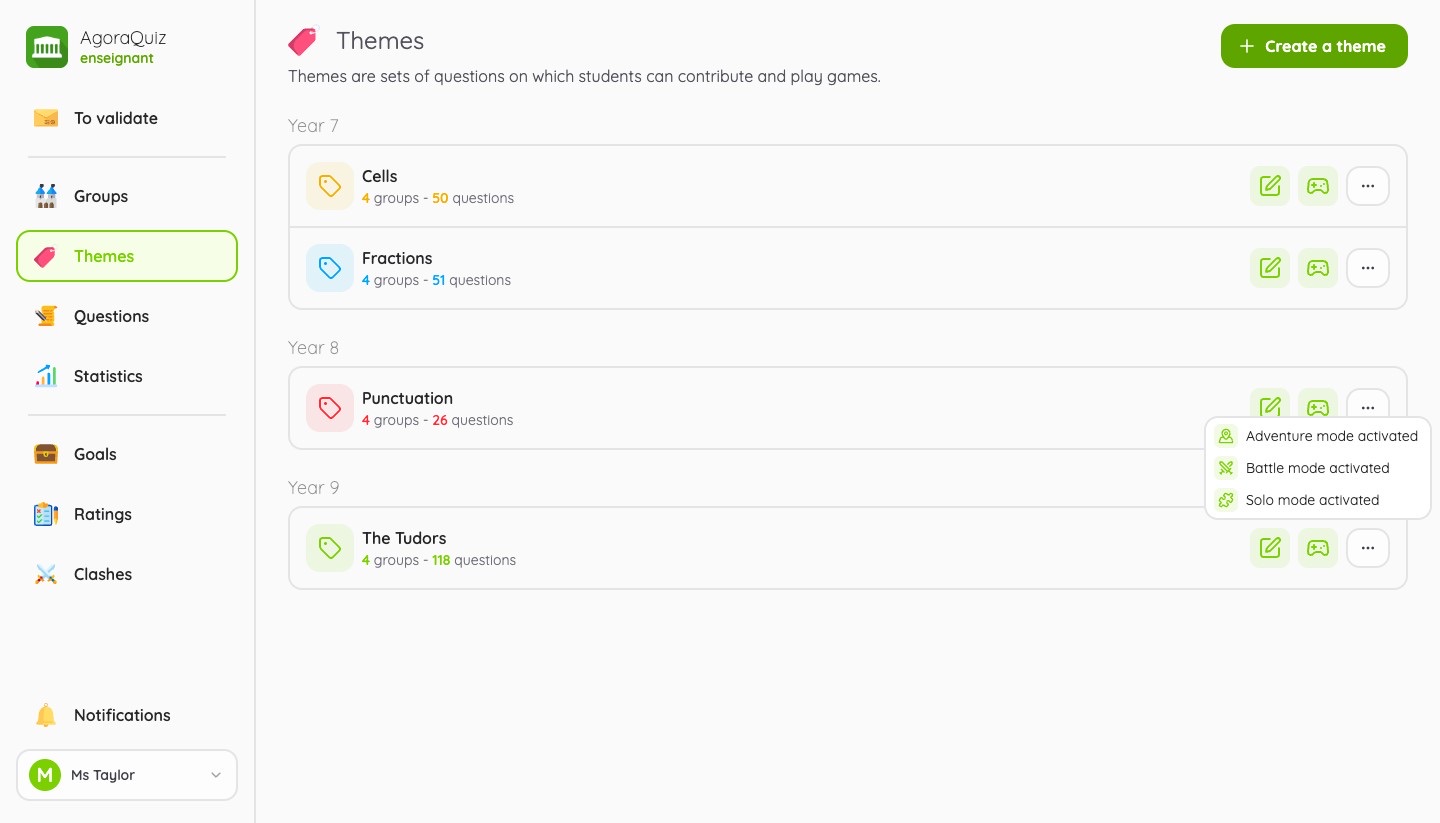
From the Themes page, click Create a theme, give it a name and select the groups that will have access to it. The same theme can be shared between several groups: approved questions then benefit all your classes.
The list of themes shows, for each one, the number of groups and questions. The gamepad icon shows the game modes that are unlocked: they switch on by themselves as the theme fills up (see step 5).
Good to know
- Match your themes to the chapters of your lessons: your students find their way around more easily, and your statistics are easier to read.
- A theme can be edited at any time, for example to open it to a new group.
Step 3 - Invite your students
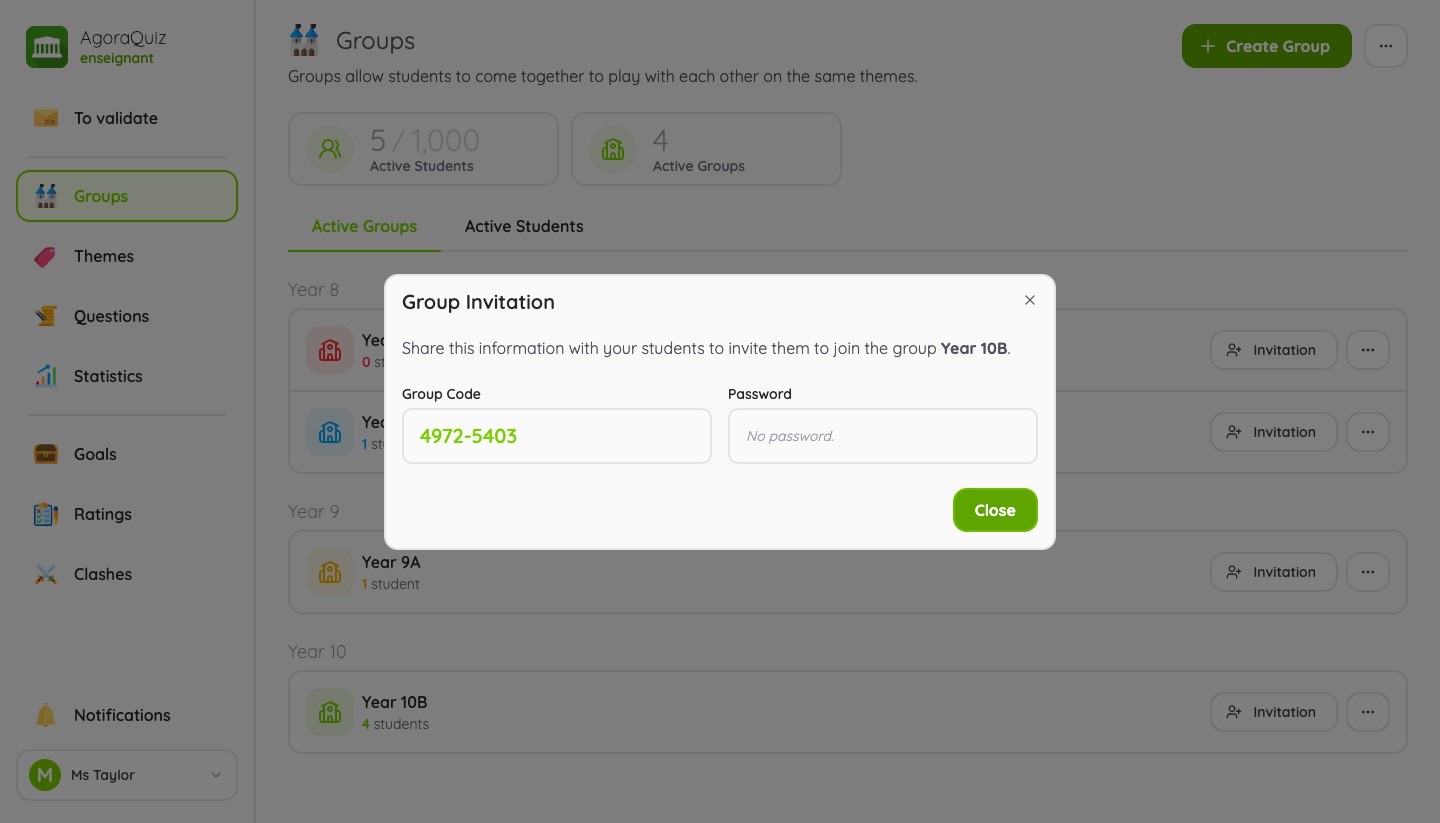
In the list of groups, the Invitation button shows the group code (8 digits) and, if you set one, its password. That is all your students need.
On the student side, everything happens in the AgoraQuiz app, on a phone, a tablet or a computer:
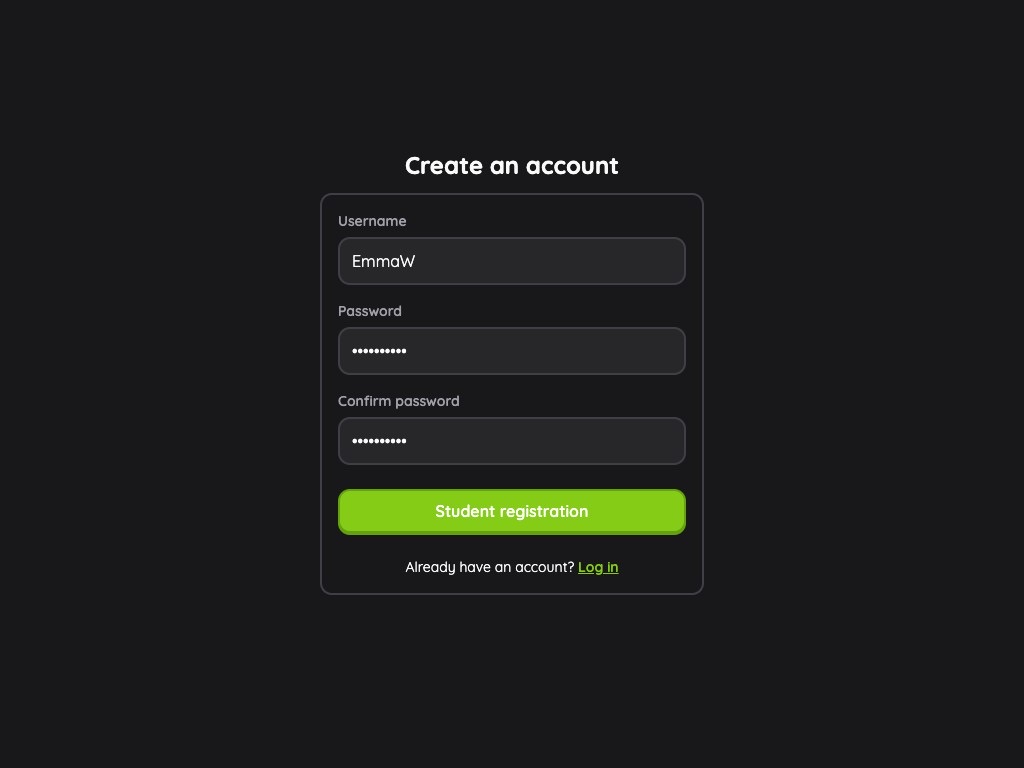
- The student creates an account with just a username and a password. No email address is required.
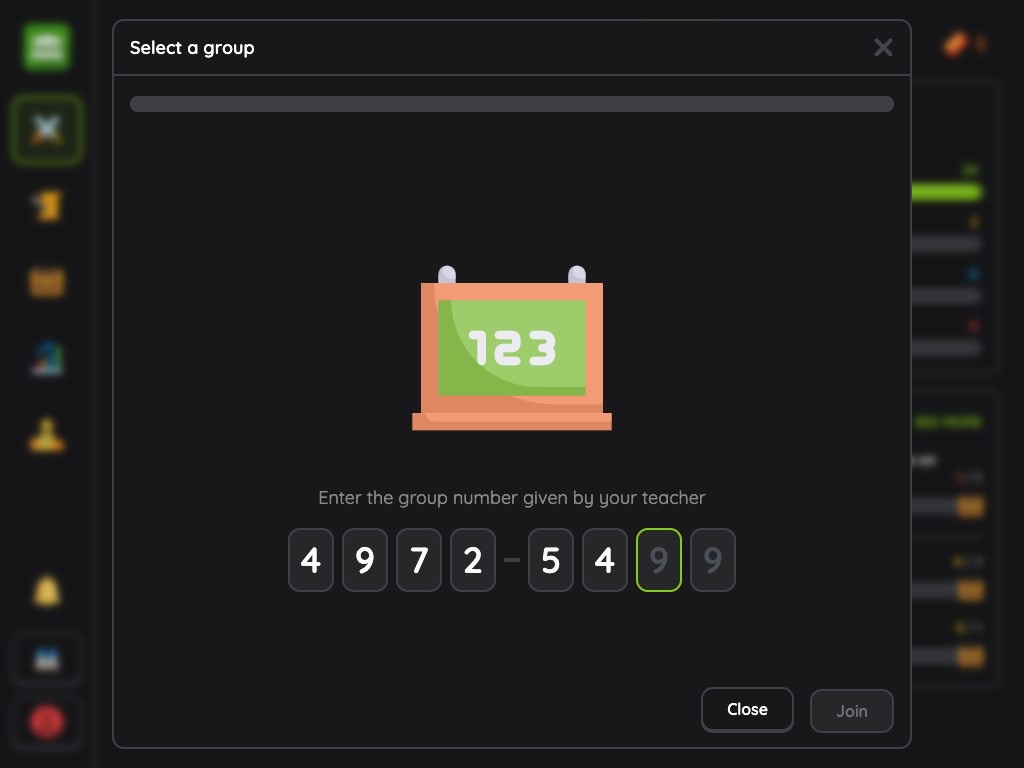
- They enter the group code given by their teacher, then the password if the group has one.
They then land on the home screen of their group, ready to suggest their first questions.
Good to know
- A student can join several groups with the same account and switch between them in the app.
- A student forgot their password? You can change it from the Active Students tab of the Groups page. This is also where you can remove a student from a group.
- AgoraQuiz is free for your students, with no ads at all.
Step 4 - Build your question bank
This is the heart of AgoraQuiz: your students write the questions. Wording a good question, and three believable wrong answers, is already revising.
Your students suggest questions
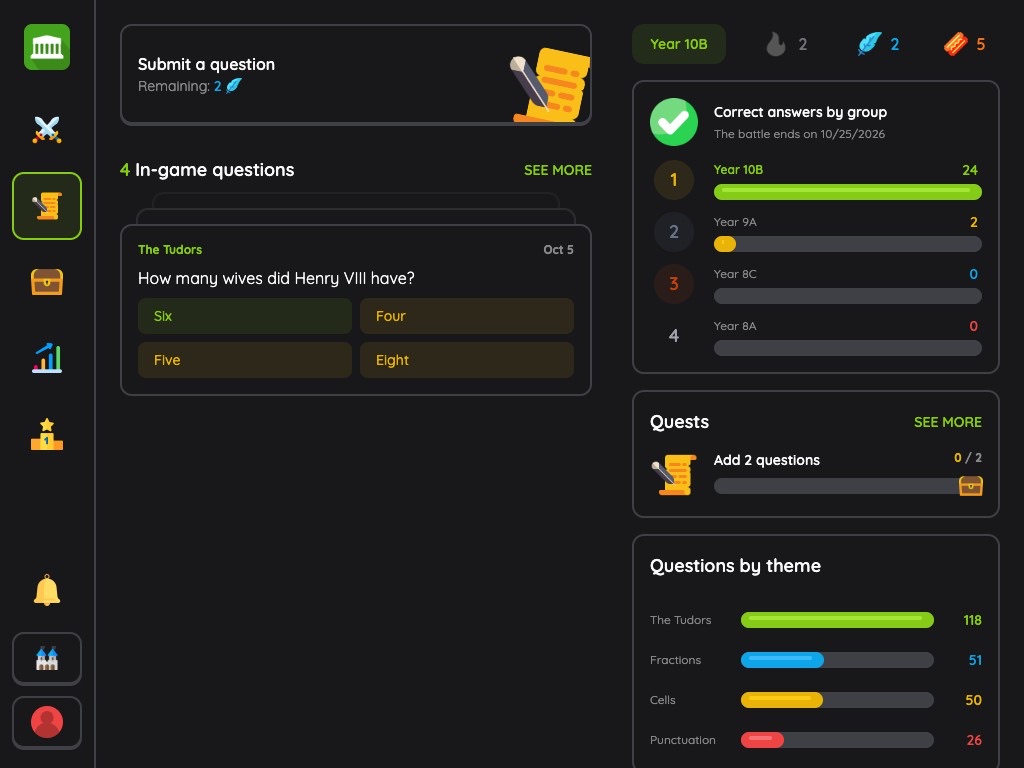
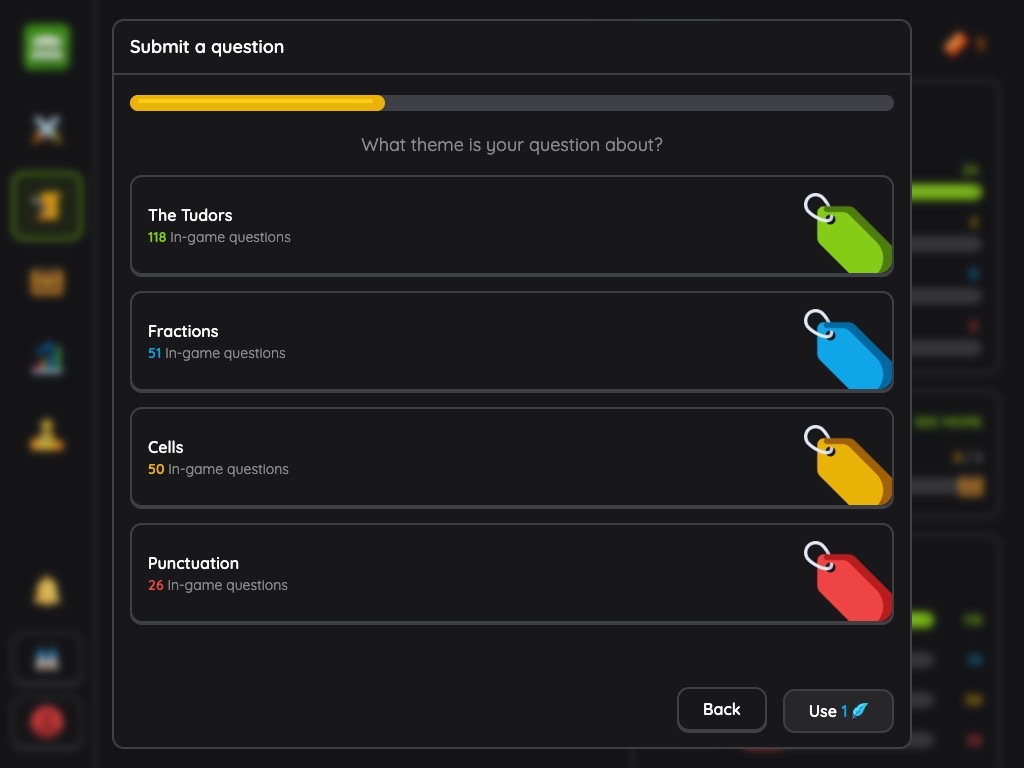
From the Contribute tab, the student picks a question type and a theme, then writes the question and its answers. In the same place they find their pending questions, the ones to correct and the ones already in the game.
Each suggestion uses up a feather. A student has 5 at most and they refill over time: a good reason to favour quality over quantity.
You approve the questions
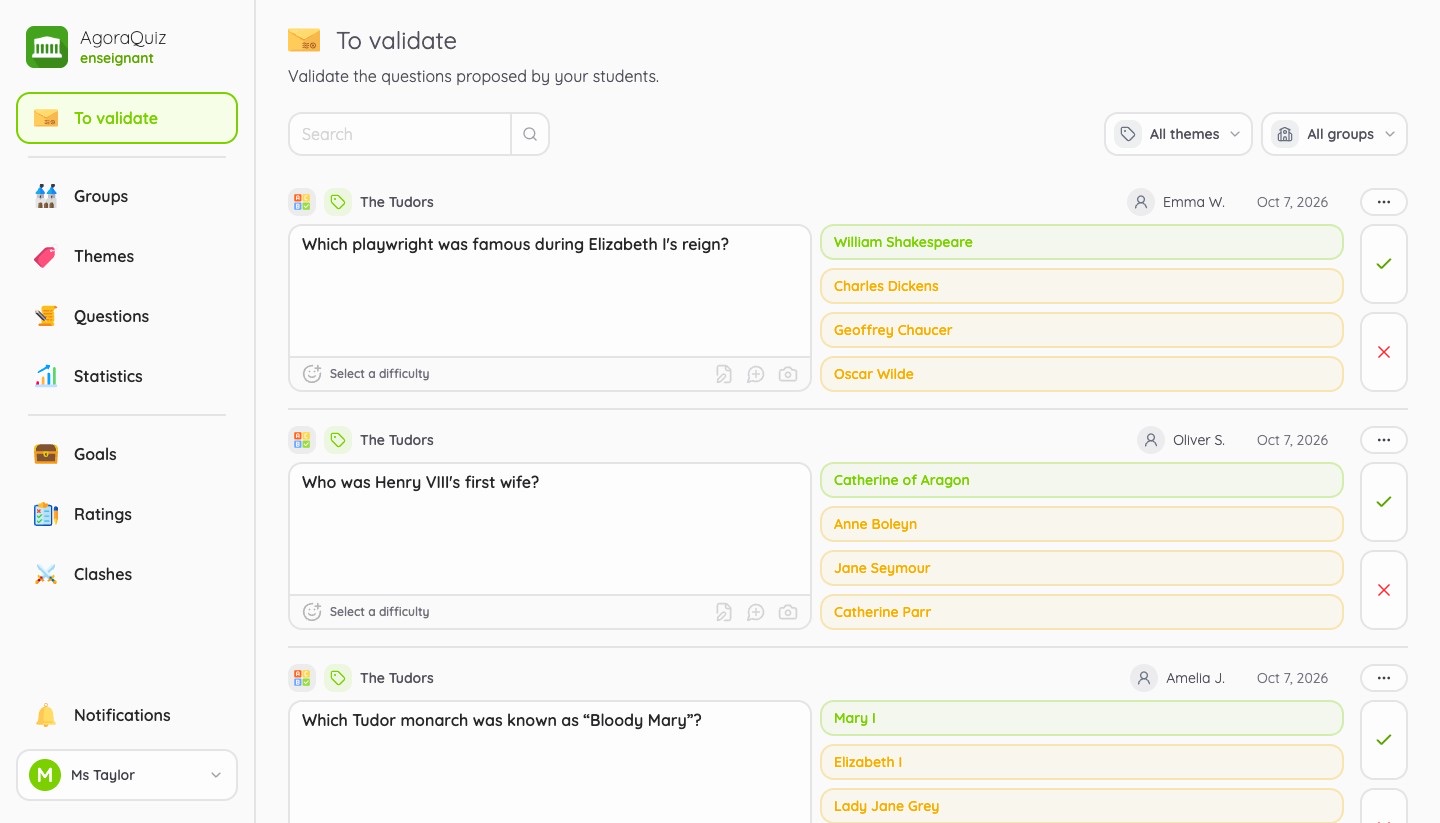
Suggested questions arrive in To validate. For each one, you can:
- correct the wording or the answers directly, and set a difficulty;
- approve it: it goes into the game immediately;
- reject it with a reason: the student finds it among their questions to correct and can send it back to you.
You can also write your own questions
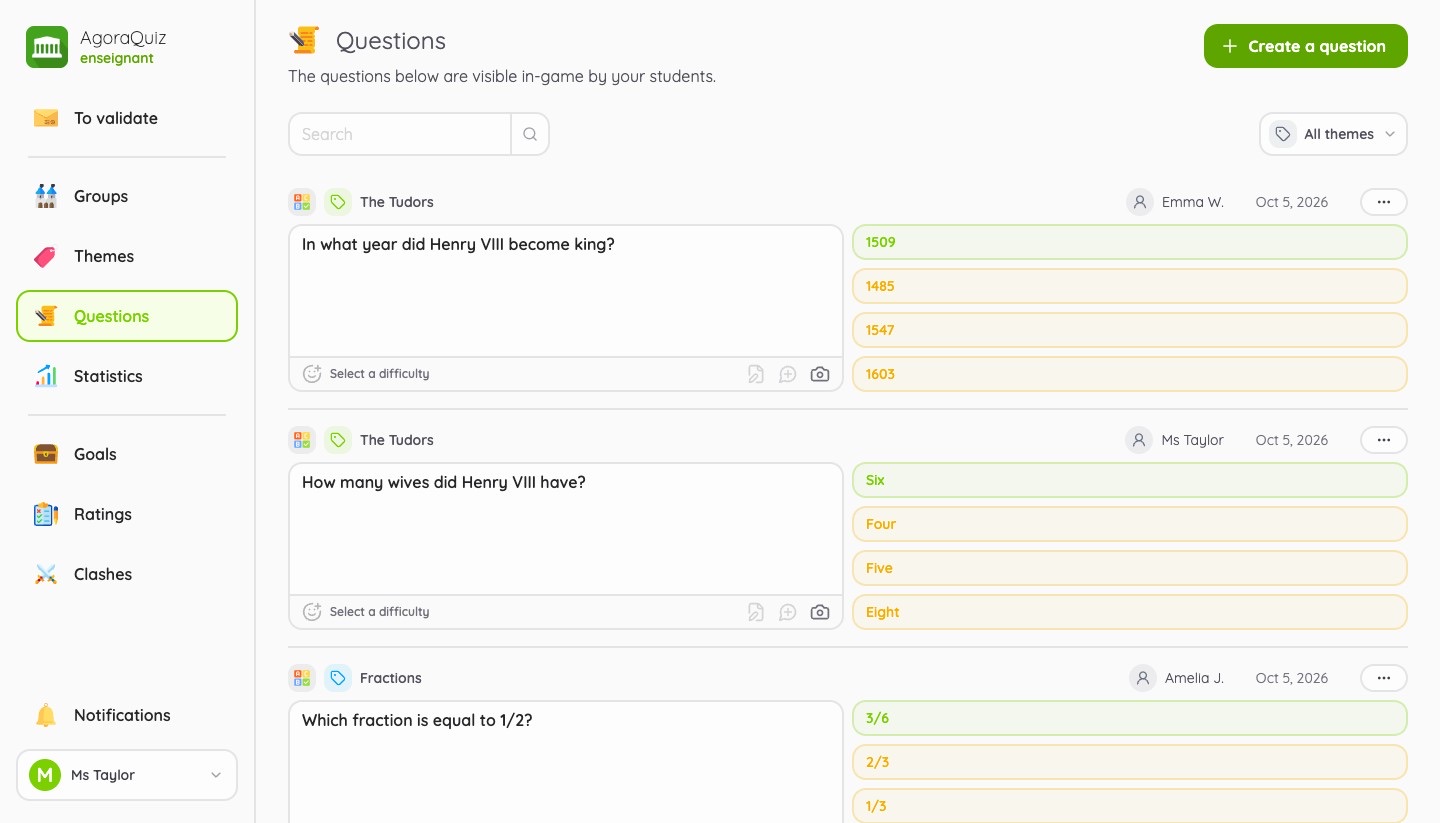
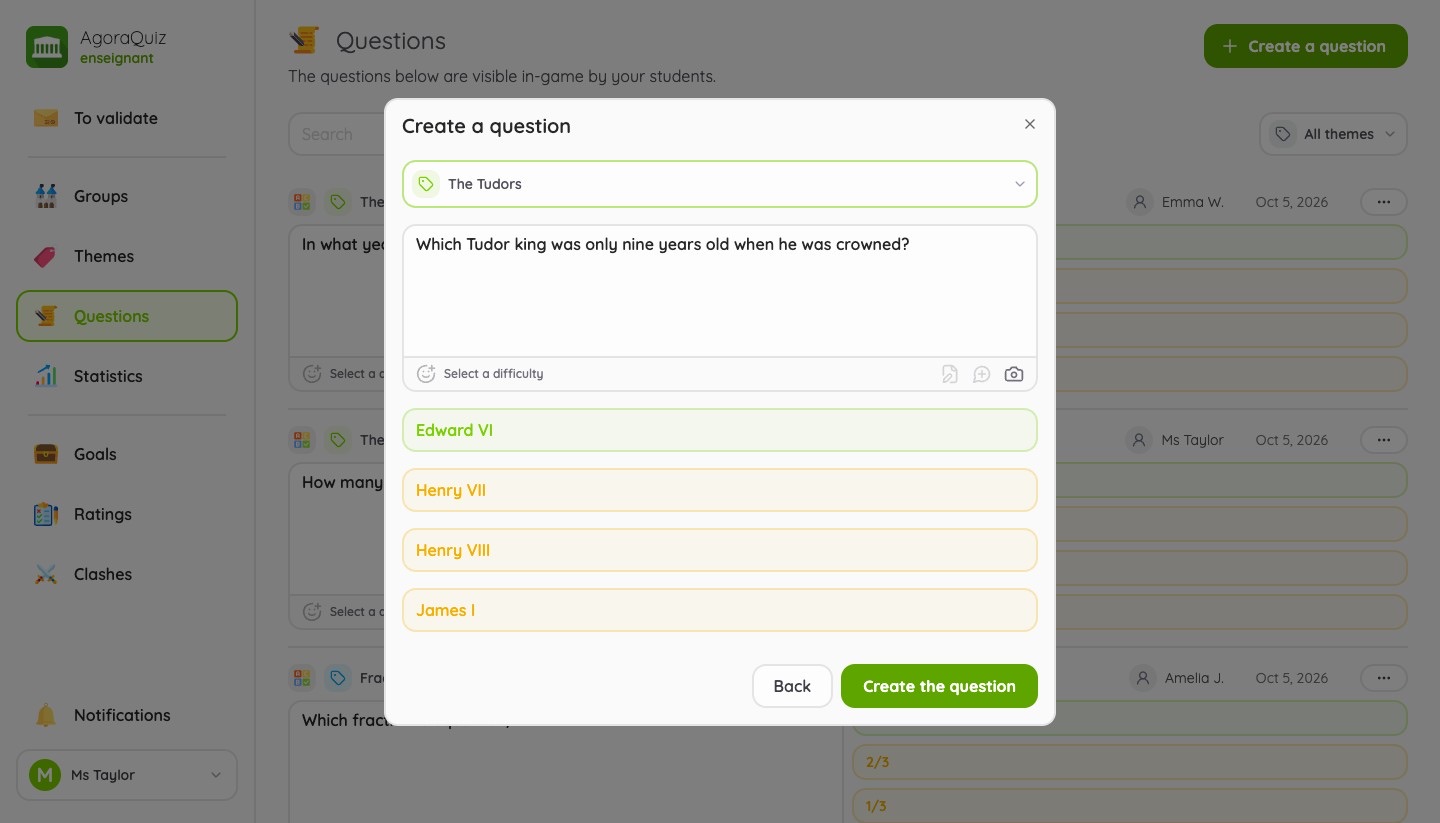
To get a theme started or to complete your students' work, the Questions page lets you create a question yourself. It also lists every question in the game, which you can edit or delete at any time.
There are three types of questions: the classic question (one correct answer out of four), the two-choice question and the multiple choice question.
Good to know
- The student earns experience points for each approved question: 150 for a classic or multiple choice question, 100 for a two-choice question.
- Don't hesitate to approve a few duplicates:
- if several students ask the same question, it is probably an important one;
- it will come up more often in the game;
- the wrong answers suggested are often different;
- every author is rewarded, not only the fastest one.
- Multiple choice questions and images are included in AgoraQuiz Plus.
Step 5 - Start playing
Good news: there is nothing to start. Game modes unlock automatically as soon as a theme has enough approved questions.
- 20 questions: Adventure mode
- 30 questions: Duel mode
- 50 questions: Solo Challenges
The student's home screen shows the available modes, their current quests and, if there is one, the ongoing battle between groups.
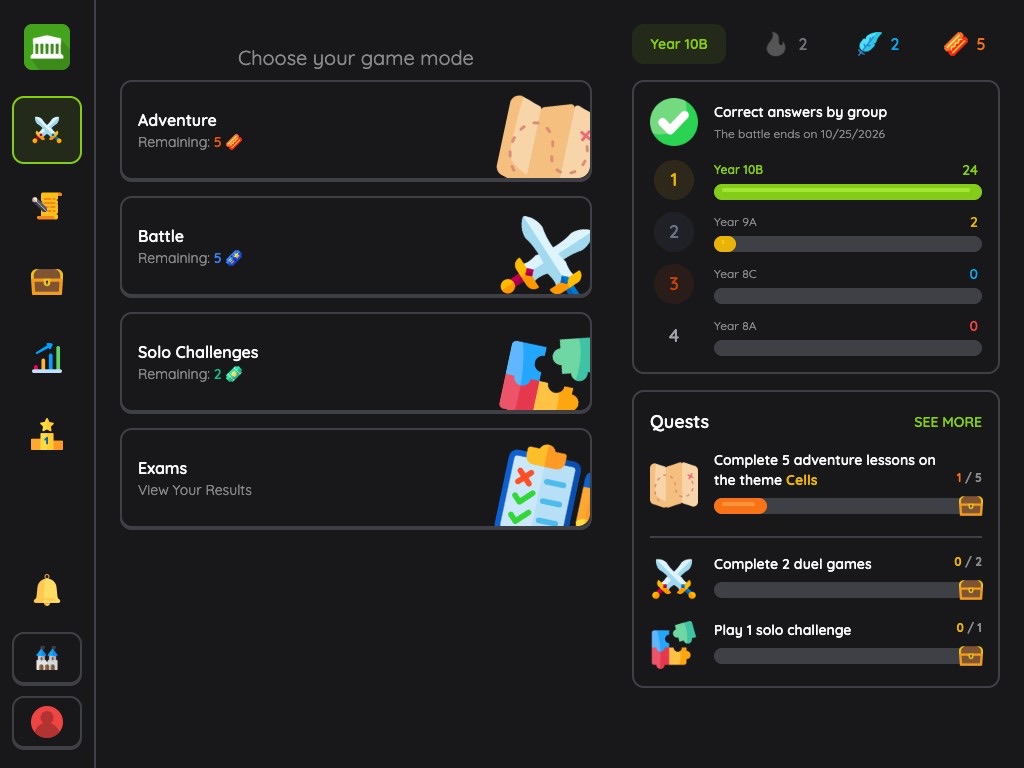
“Adventure” mode
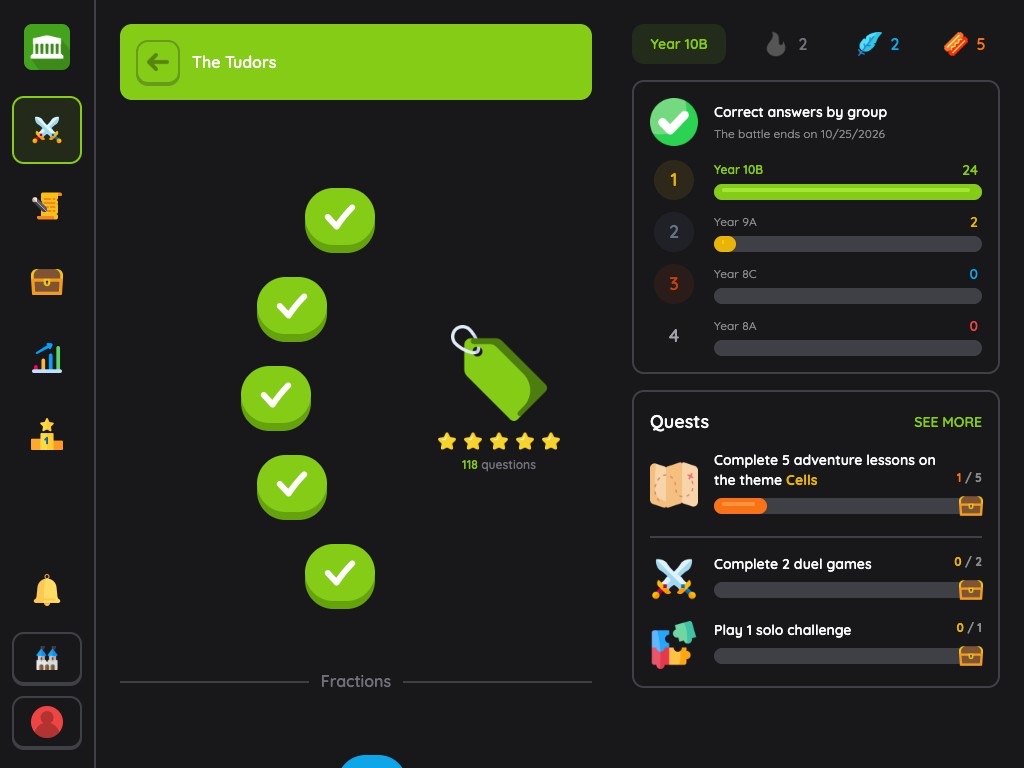
Each theme is a path of 5 lessons of 10 questions, to complete one after the other. The first lesson opens at 20 questions, then a new lesson unlocks every 20 additional questions: the more the class contributes, the longer the adventure.
“Duel” mode
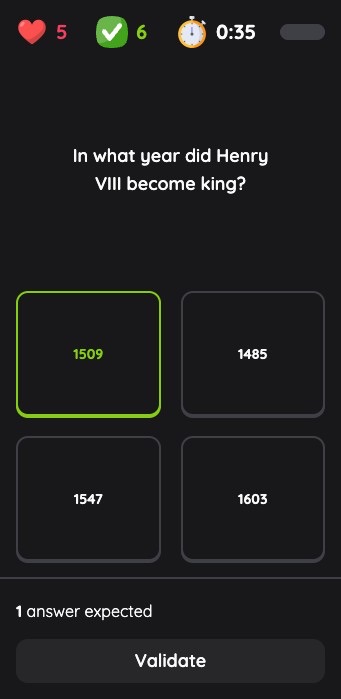
A head-to-head with a classmate from the group, in 4 rounds of 3 questions. In each round, one of the two players picks the theme among 3 options. The game is asynchronous: each one plays when they are available, and whoever gives the most correct answers wins.
Two ways to start a duel:
- Normal game: the student is matched with another player from the group.
- Friendly game: the student challenges a classmate directly by entering their name.
Solo Challenges
Three challenges to practise alone and beat your own score, or the group's:
- Survival mode: answer as many questions as possible correctly, with only 3 lives.
- Time attack: give as many correct answers as possible in 1 minute 30.
- First to 10 correct answers: reach 10 correct answers as fast as possible.
Quests, streaks and leaderboards
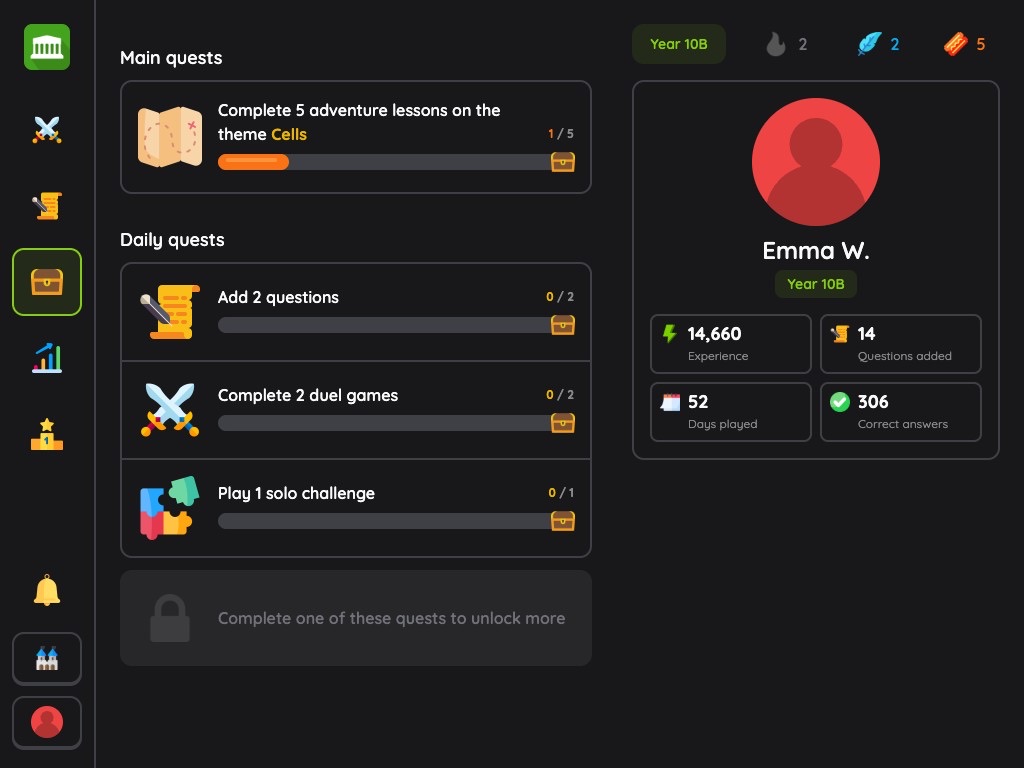
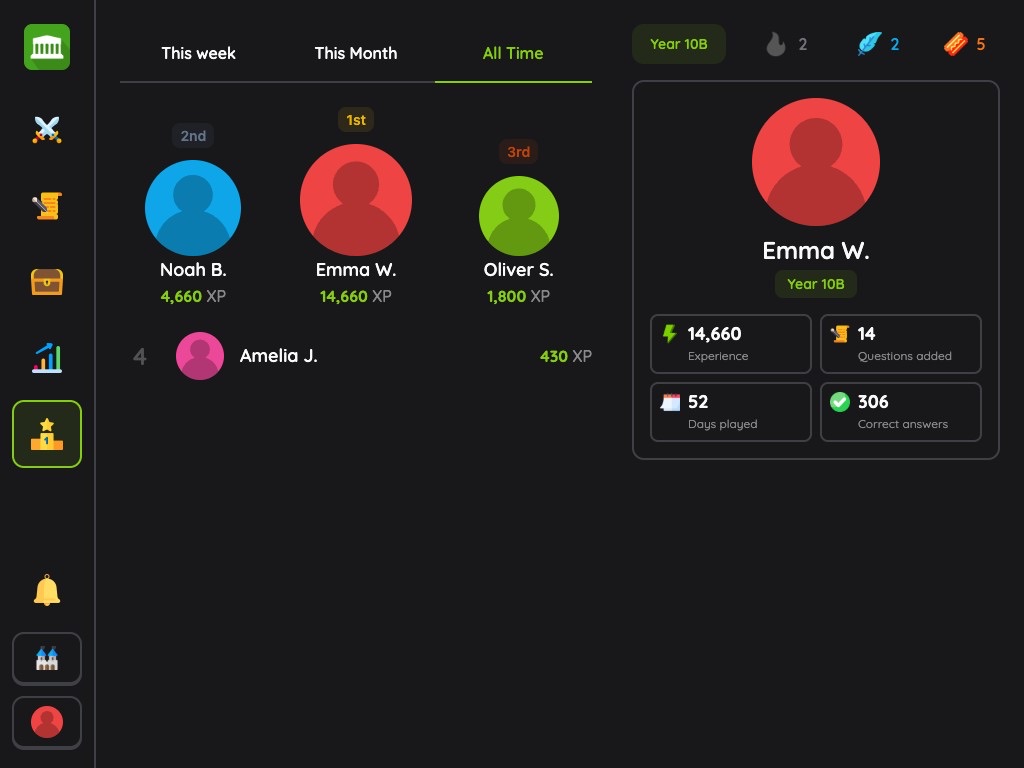
To make students want to come back, the app gives each of them daily quests (add questions, complete lessons, play a duel...), a streak of practice days to keep alive and a leaderboard of the group.
Good to know
- Students earn experience points for each correct answer.
- Each game uses up a ticket of the mode played. A student has 5 at most per mode and they refill over time. With AgoraQuiz Plus, your students play without limits.
Step 6 - Track progress
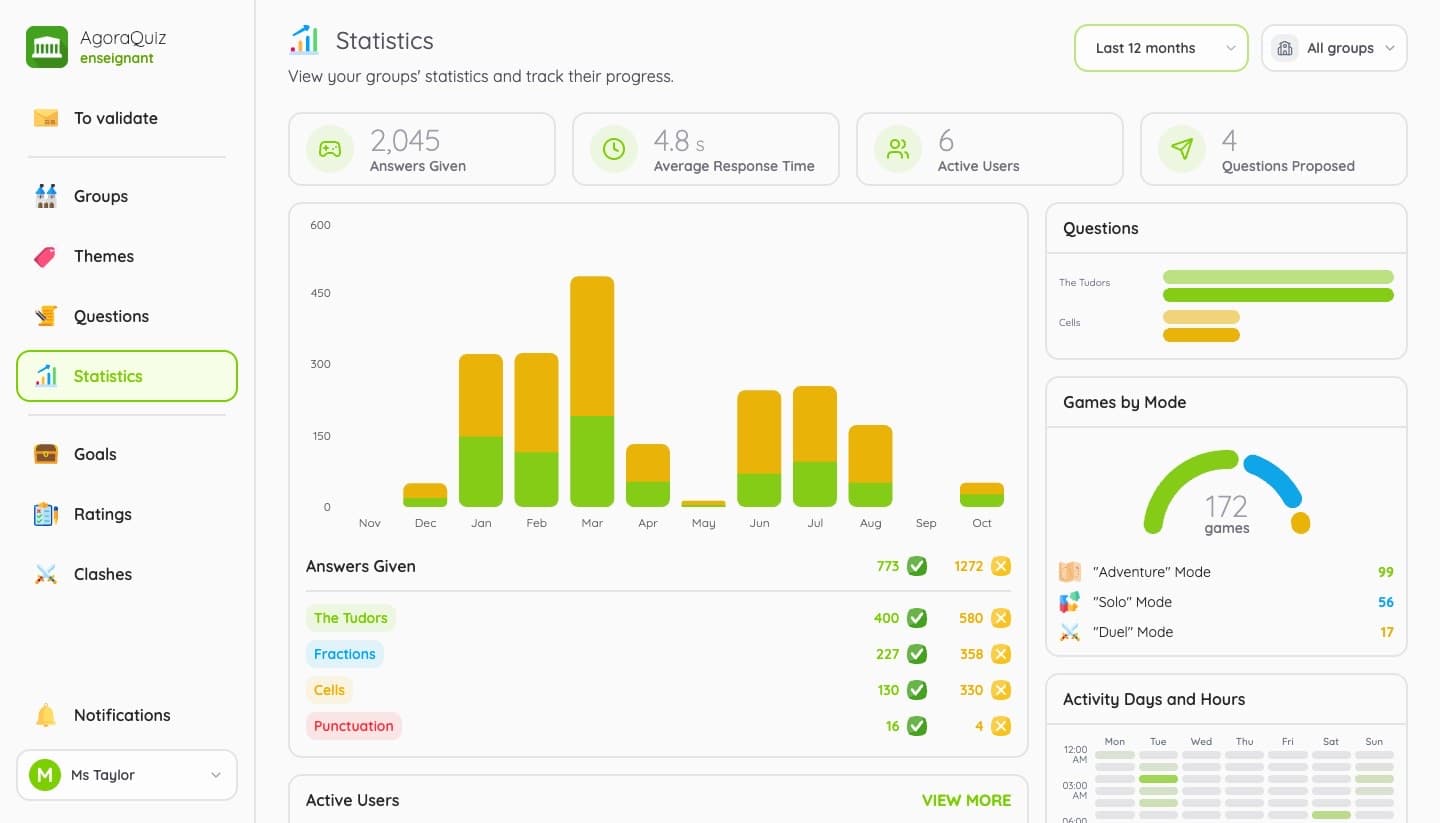
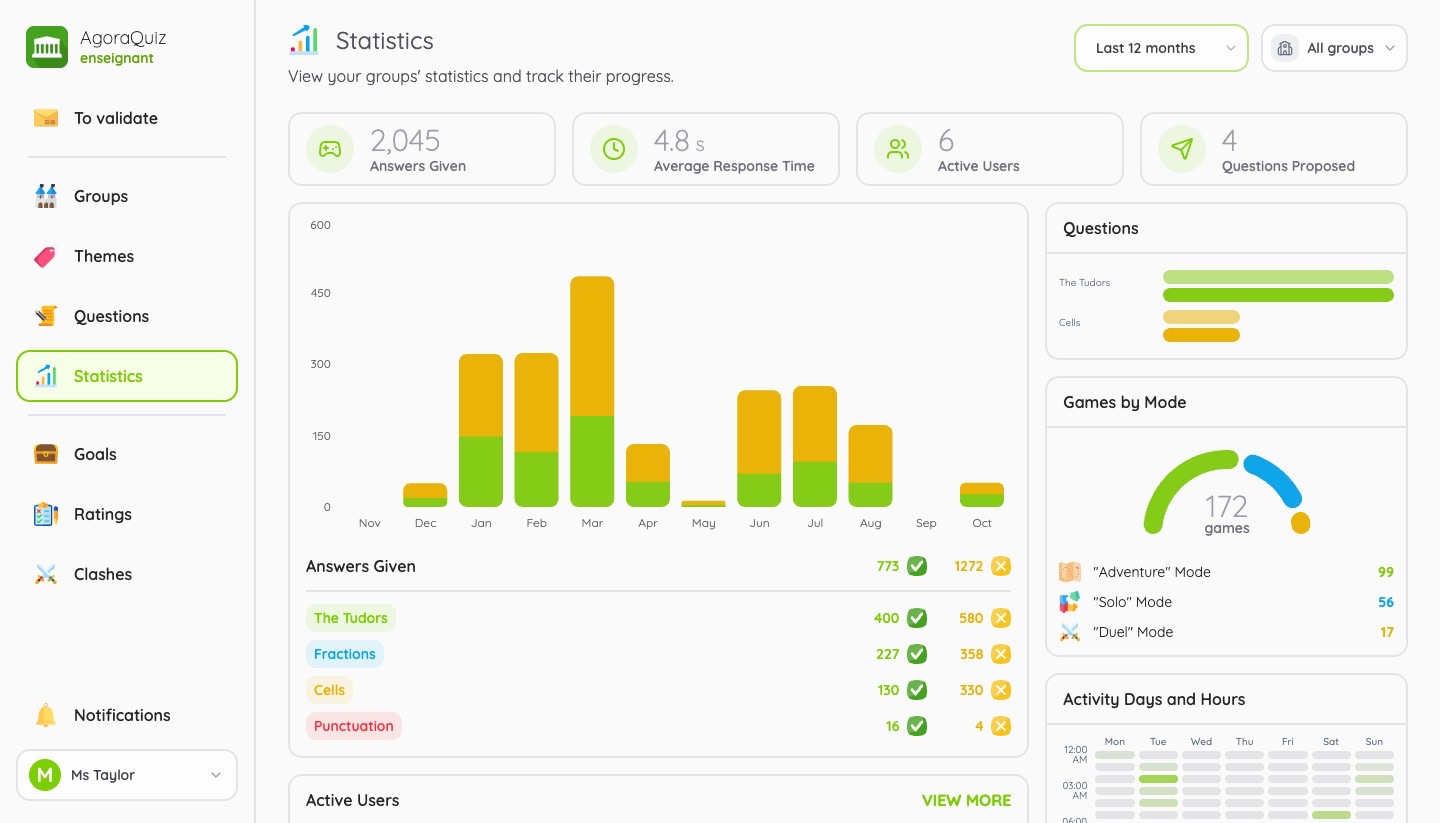
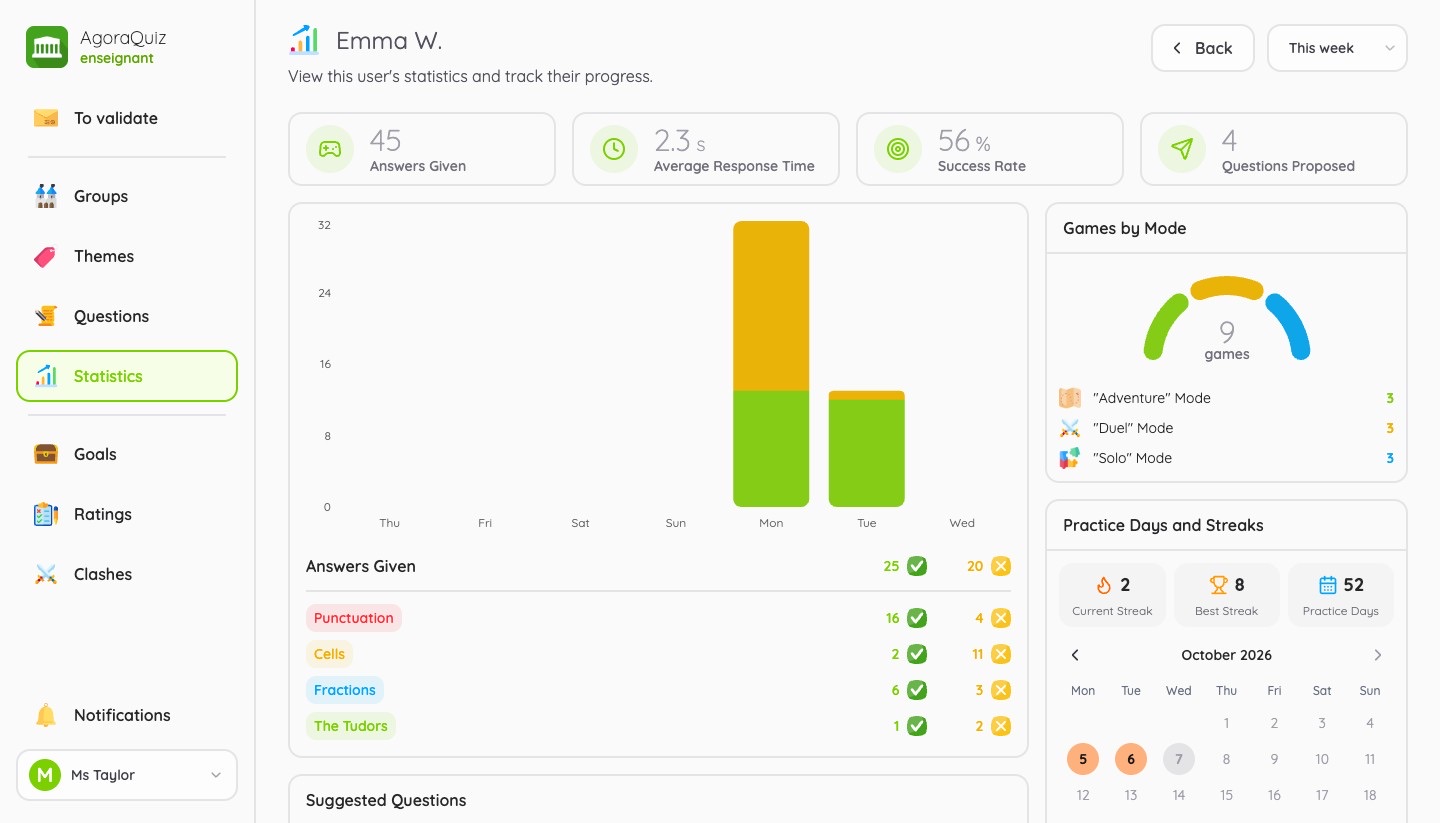
The Statistics page gathers the activity of your groups: answers given, average response time, active students, questions suggested, results per theme, games per game mode and hours of activity. You can filter by group and spot at a glance the themes that cause trouble.
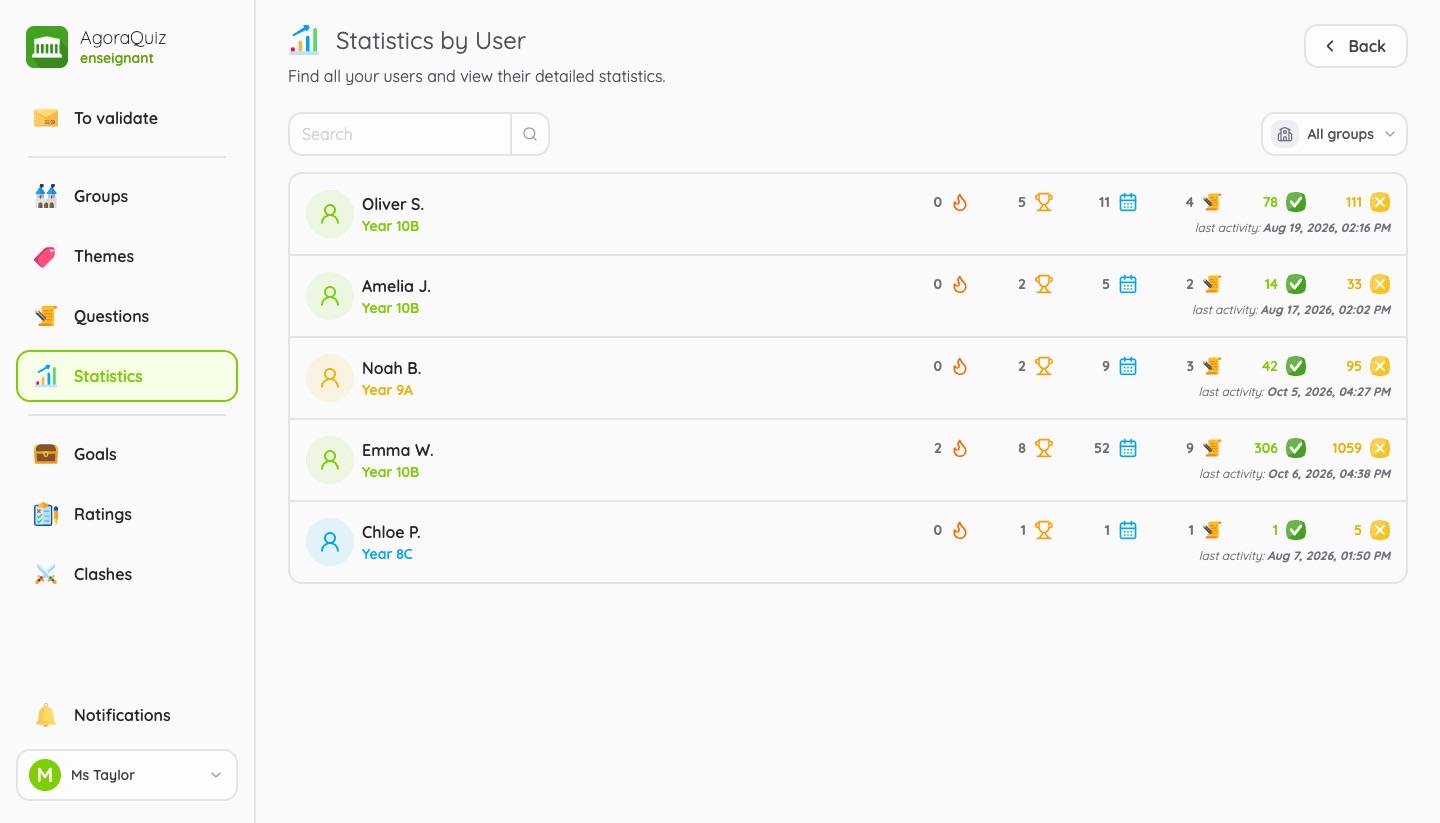
With AgoraQuiz Plus, you also get detailed tracking of each student: their answers per theme, their regularity, their streaks, the questions they suggested and their latest answers.
Good to know
- The free account shows the statistics of the current week. AgoraQuiz Plus opens the whole history: 30 days, 12 months or the entire year.
Step 7 - Go further with AgoraQuiz Plus
Once your students are up and running, AgoraQuiz Plus adds three tools to liven up your revision sessions. You can try it free for 14 days.
Goals
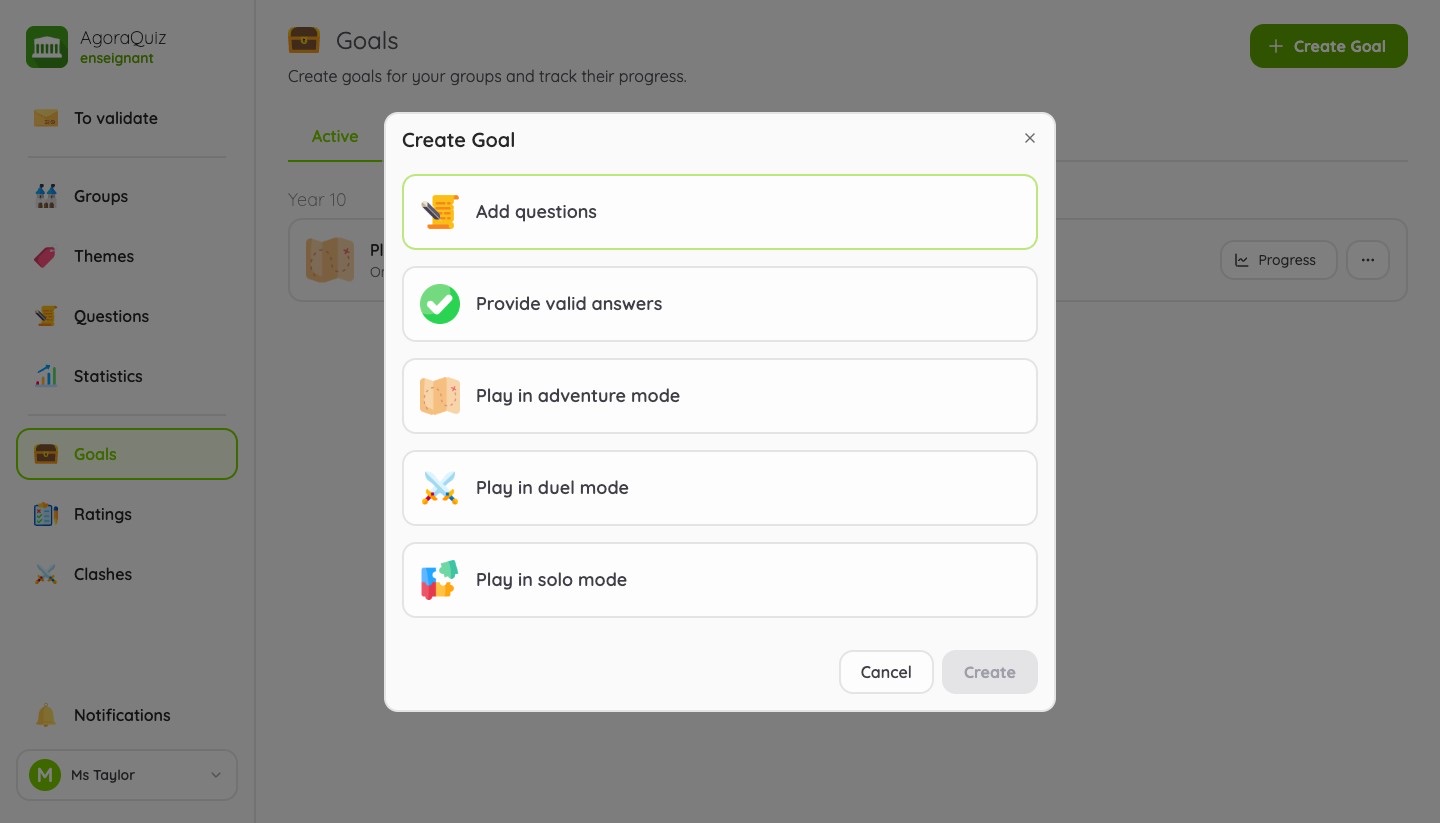
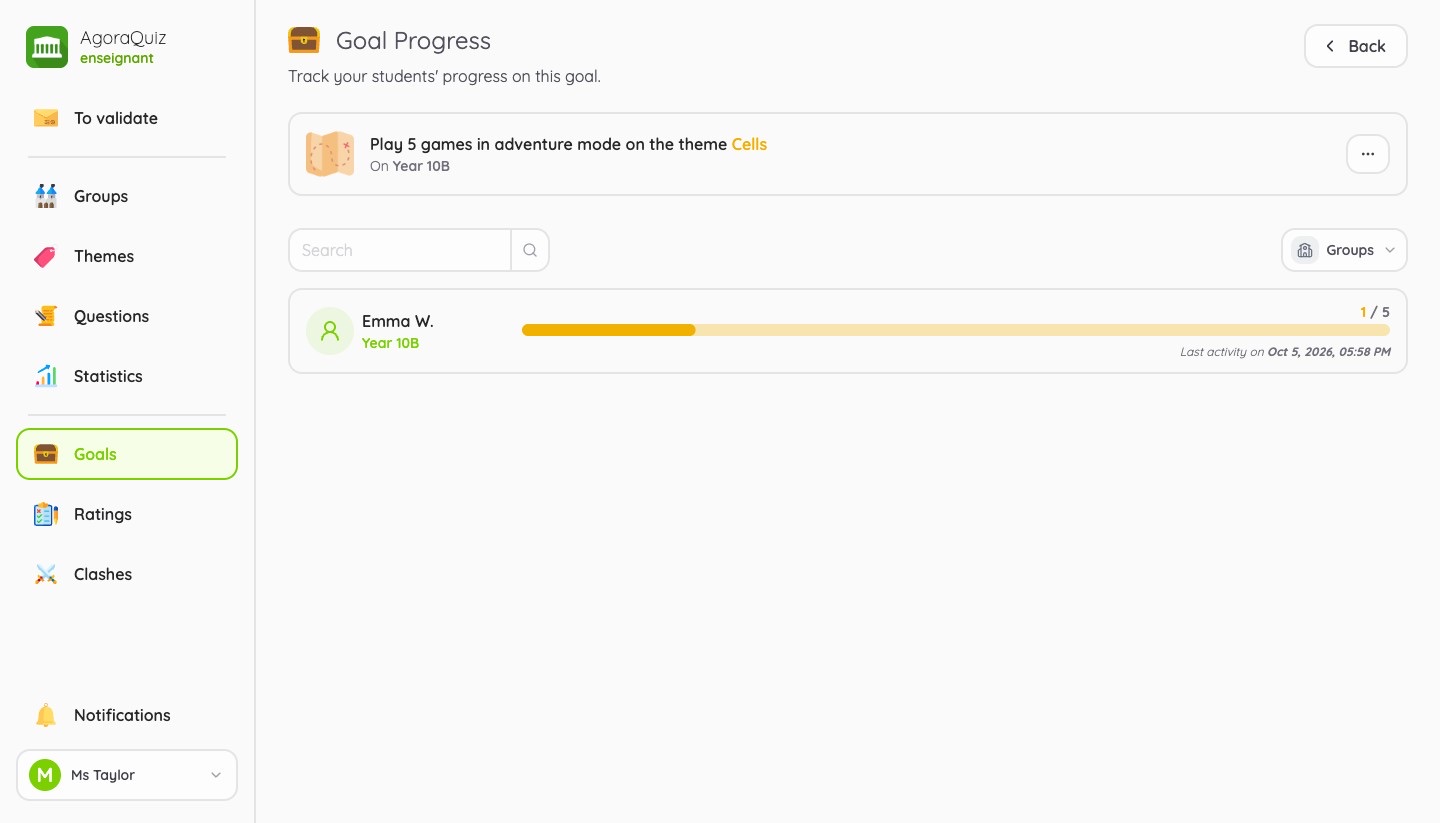
Set a target for your groups: add questions, give correct answers or play in a given mode, on a theme if you wish and until an end date. The goal appears in your students' main quests, and you follow everyone's progress.
Evaluations
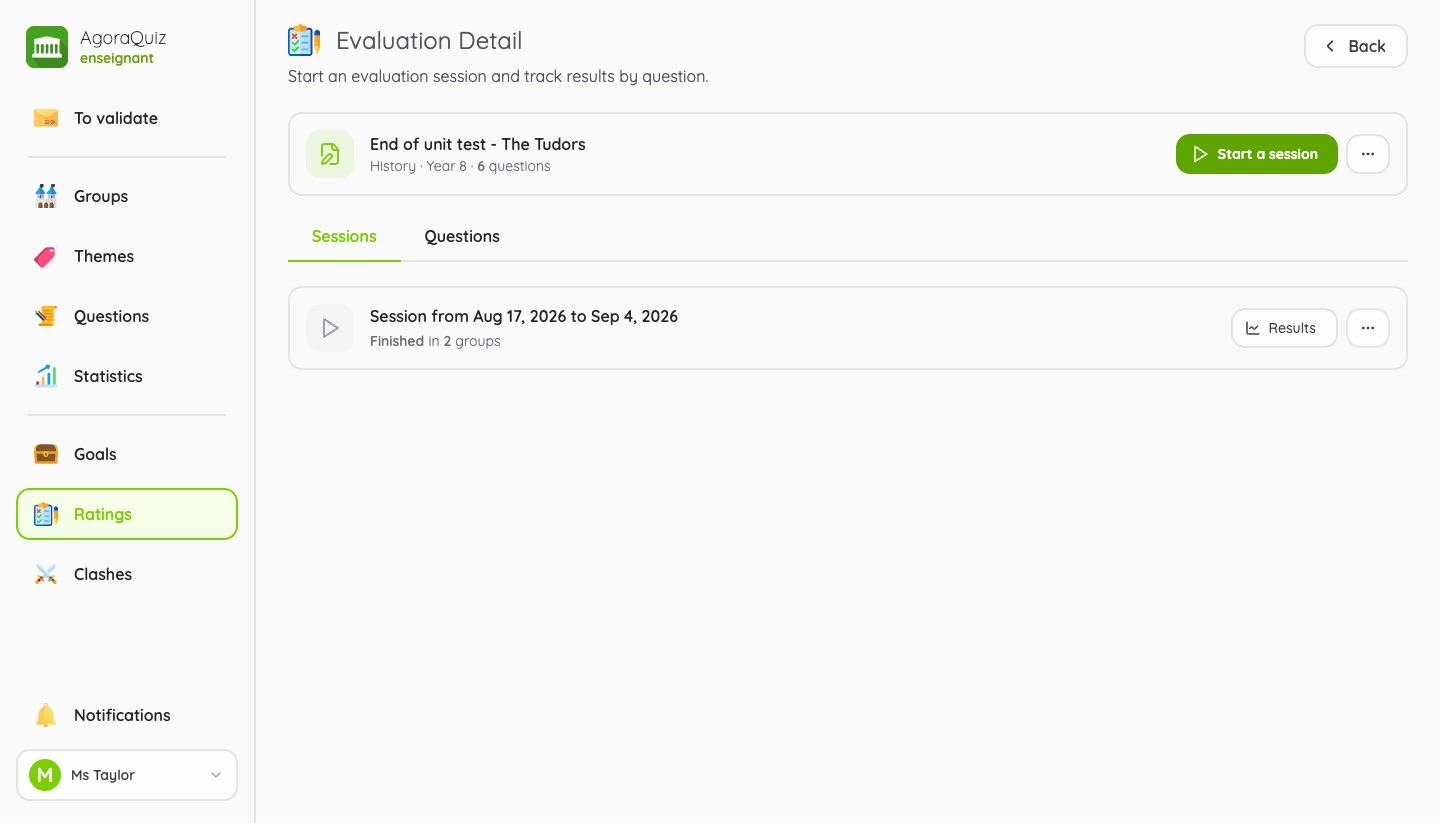
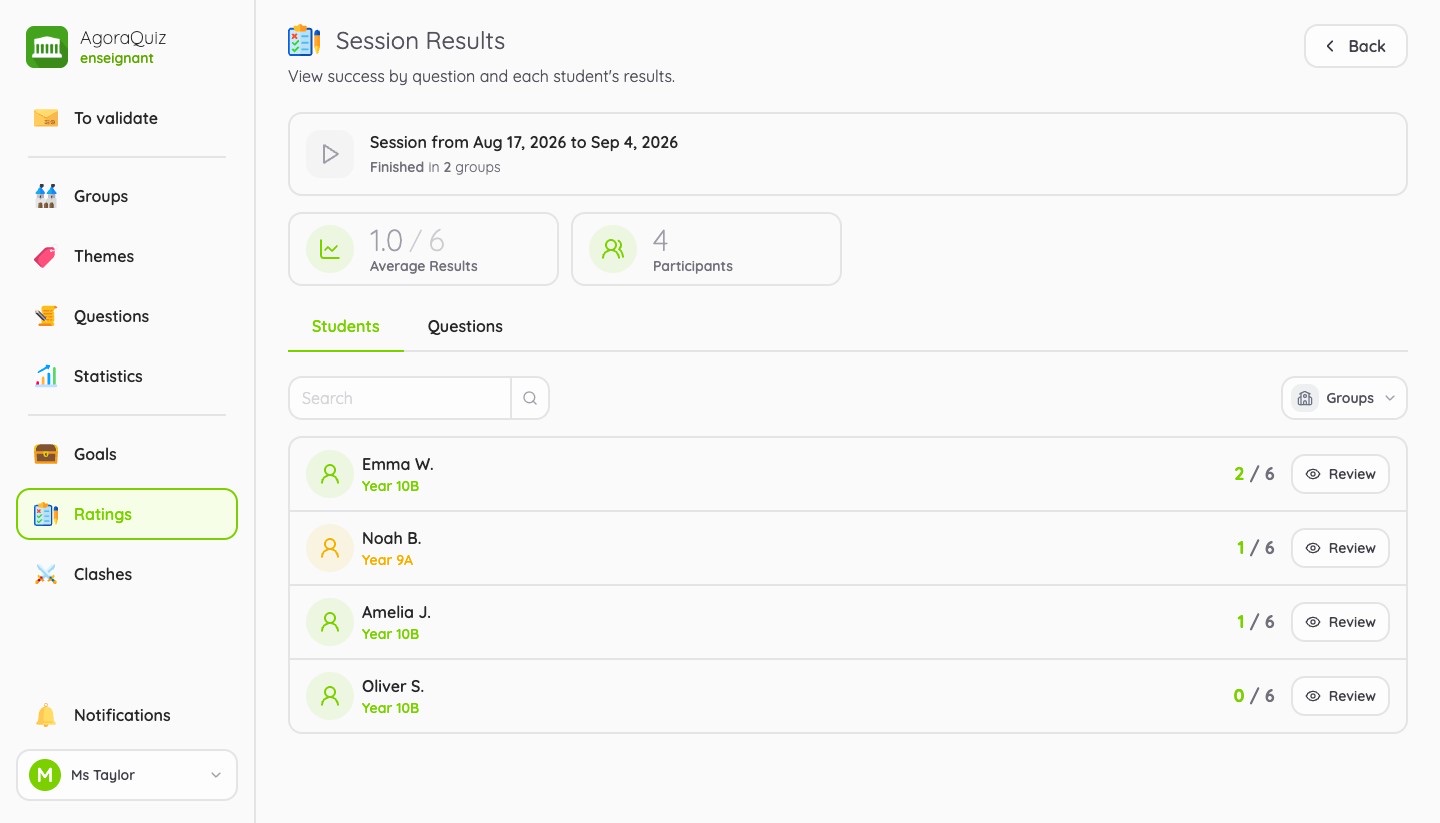
Build an evaluation from your questions (in the Ratings menu), then start a session for one or several groups. Students take it from their app, marking is automatic and you get the success rate per question and per student.
Group battles
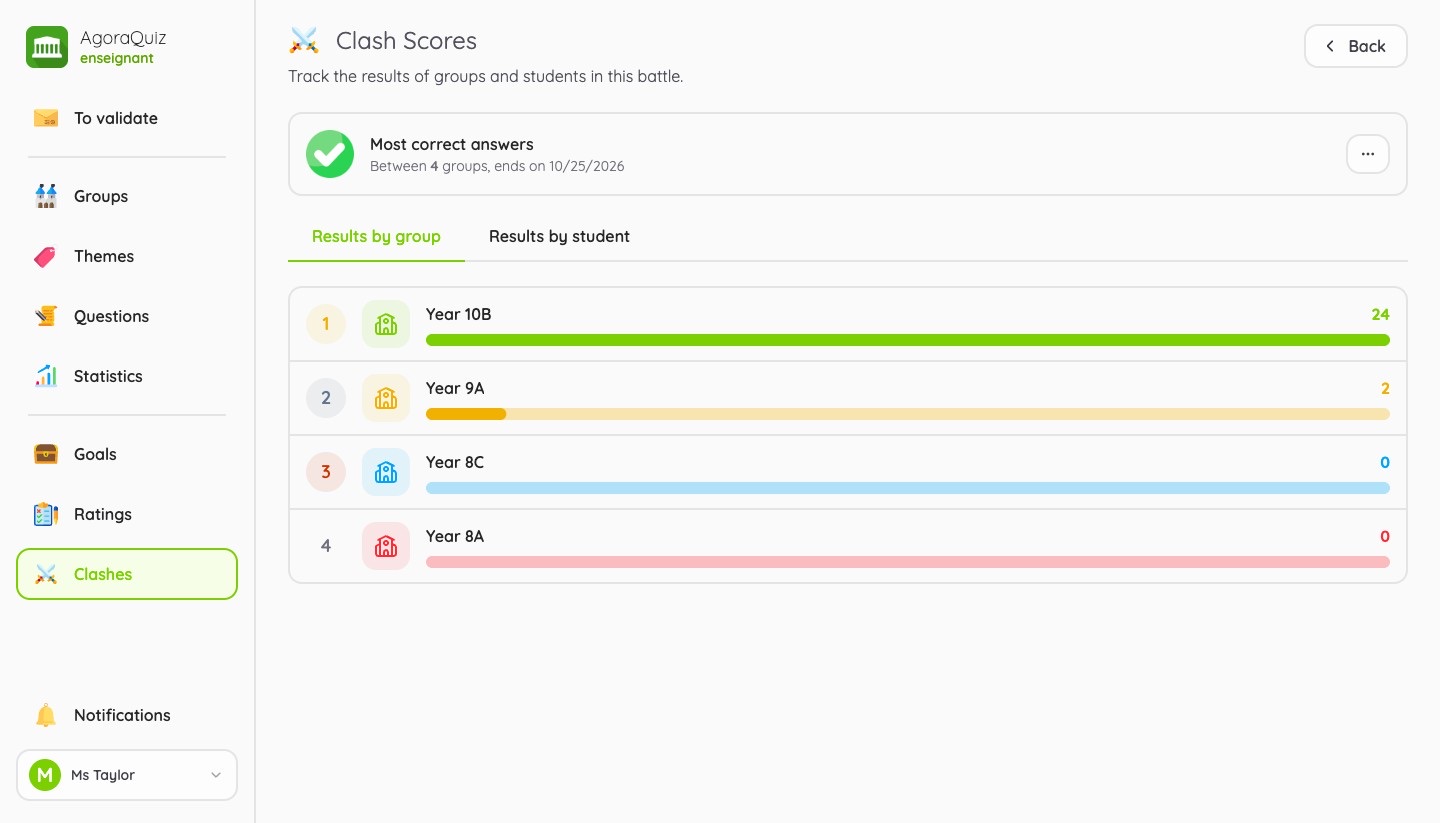
Pit your classes against each other over a given period (in the Clashes menu). The winning group is the one with the most correct answers, the most questions added or the most duels won, depending on what you choose. Students watch the score change live on their home screen.
Congratulations! You now have everything you need to make the most of AgoraQuiz with your students.
Thank you for reading this guide to the end. To stay up to date, follow us on social media:
See you soon on AgoraQuiz!